
November 22, 2009
In the last two hours I've had Explorer (the shell) crash and restart three times. The last time I grabbed the extended error message. (Interestingly, even though Explorer was halted, the scratch pad still worked.)
Problem signature:
Problem Event Name: BEX
Application Name: Explorer.EXE
Application Version: 6.1.7600.16404
Application Timestamp: 4a765076
Fault Module Name: Mpeg2DecFilter.ax_unloaded
Fault Module Version: 0.0.0.0
Fault Module Timestamp: 4a9b7207
Exception Offset: 1531aa20
Exception Code: c0000005
Exception Data: 00000008
OS Version: 6.1.7600.2.0.0.768.3
Locale ID: 1033
Additional Information 1: 0a9e
Additional Information 2: 0a9e372d3b4ad19135b953a78882e789
Additional Information 3: 0a9e
Additional Information 4: 0a9e372d3b4ad19135b953a78882e789
All three times I was doing the same thing. I had a DVD in my drive. AnyDVD was removing the encryption. I was running Vidomi, a freeware program for extracting video segments out of DVD VOB files. (I'd link to it, but it doesn't seem to be there any longer.) I'm using its "Select Source Range" popup to scan through the VOB files to find frames for the top rotation.
I also have Thumbs Plus running. It has a mode which will grab anything put into the scratchpad and store it, if you set it up to do so. So when I find an appropriate frame in Vidomi, I use Alt-PrtSrc to grab the window, and Thumbs Plus automatically creates a file of it in my Grabs directory. The result is this:
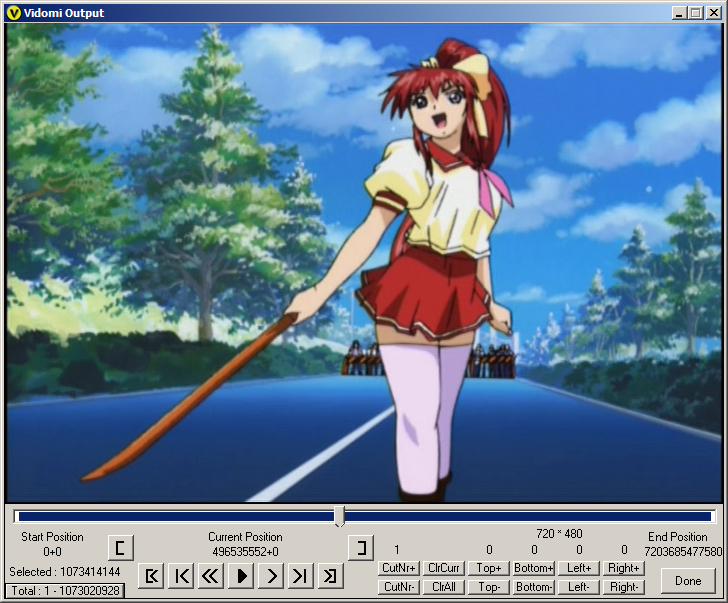
Which is a 3:2 raw frame grab, plus some associated cruft. Downstream from this point, I have a Thumbs Plus batch file which extracts out just the 720*480 screen segment, and then I can use other tools I own (mostly PSP8) to resize and correct the aspect ratio and add labels, and voila! Top rotation pictures.
I've been using this process, or a variation of it, for years now. It worked fine in XP. It worked fine in Vista. This evening it's managed to crash the Win 7 Explorer three times.
What's peculiar is that in all three cases I had been taking frame grabs for quite a while before it died. It's not like it bagged it the very first time I attempted to do anything.
UPDATE: And it just died a fourth time. I think I'm going to try copying all the VOB's onto my HD and see if I can do it from there, so that I'm not using AnyDVD interactively.
UPDATE: And doing that, no problems at all.
I have a sneaking suspicion that the problem is with Explorer trying to create thumbnails for the VOB files on the DVD, with AnyDVD running.
UPDATE: I spoke too soon. Explorer just bagged it again, while I was trying to copy VOB files from the next DVD onto my HD. I think I'm going to turn off the "Details pane" for the time being.
UPDATE: Now I'm sure that's what happened. When it crashed, I had just sweep-highlighted the VOB files I wanted to copy, and the drive access LED started blinking. It ran like that for maybe 30 seconds, and then the Explorer crashed.
After it restarted, I turned off the Details pane (which is where that thumbnail would have been displayed) and after I sweep-highlighted the VOB files, there was no blinking. And the copy ran smoothly.
Posted by: Steven Den Beste in Computers at
07:25 PM
| Comments (8)
| Add Comment
Post contains 542 words, total size 4 kb.

November 17, 2009
How do I make the arrows in the lower left corners of shortcuts smaller? Used to be there was a choice you could make of large arrows, small arrows, or no arrows. In Win 7 I can't find any place that allows me to control it.
Used to be, in the folder options popup for Explorer there was a place where you could scroll a listing of all the file types the system knew about, by file extension. Find the one you're interested in, and click it, and then click a button, and you'd get another popup which showed all the programs which were associated with that file type, and what those commands were, and which one was the default. Those all showed up in the right-click menu for files of that type. I can't find any way to do that in Win 7. How is it done?
UPDATE: Well, that was interesting. I just had a Control Panel applet lock up, and when I used the task manager to abort it, Explorer restarted. (Note to self: don't run the "location and other sensors" applet again.)
Posted by: Steven Den Beste in Computers at
11:19 PM
| Comments (11)
| Add Comment
Post contains 190 words, total size 1 kb.
November 09, 2009
I've been keeping an eye on the Inmatrix web site, waiting to see when, if ever, V7 of Zoom Player becomes official. Tonight I noticed that there's an RC2 of the V7 beta, so I downloaded it. And for the hell of it, I decided to install.
It installs in a different directory, so in fact my V6 still works. There's probably a change list somewhere which I haven't seen yet. But I have noticed one big thing: I can take frame grabs now when using EVR as a rendering mode!
Which is major, because EVR is the only rendering mode which does smooth scaling for aspect ratio correction. I used to use VMR9 Windowless, but as of my upgrade to Win 7 it looks like crap. EVR looks excellent, but when I was using it I couldn't take frame grabs.
And now I can.
UPDATE: I found the change list and it's really long. It's also nearly completely irrelevant to my needs. But that one change is a really big one. Hooray!
Posted by: Steven Den Beste in Computers at
10:29 PM
| Comments (2)
| Add Comment
Post contains 177 words, total size 1 kb.
November 08, 2009
So I've been using Win 7 for a couple of weeks, and I've been keeping a list of things I like and don't like as they've been happening. In as much as I'm not using the nifty new display mode, mostly it's little stuff. So here goes:
Things I like:
Narrow columns in the "list" directory mode. Back in XP, each column would be as wide as it needed to be for the longest filename in that column. With Vista, they decided to make each column a fix width: fat. Now, in Win 7, we're back to the way XP did it.
It is doing a better job of remembering the default display mode for directories. Vista was supposed to do that, but it kept using "tile" mode in directories that it noticed pictures in, and overall it generally thought it knew better than I did what mode I wanted my directories displayed in. Win 7 isn't doing that.
Smaller memory footprint. Vista idle on this computer tended to run between 45% and 60% of memory used. Win 7 seems to run in the high 30's.
Icon display is faster. Opening an IE8 favorites folder, the icons paint a lot faster than they used to.
Larger ReadyBoost Cache. Vista was limited to using 4G of my 32G SDHC chip for that function. Win 7 uses all of it.
Sticky Notes. They're not as useful as they could be, but they're still kind of nice. They're nice for keeping quick notes on.
Things I'm not so happy about:
Icon spacing in the tray is larger, so the tray takes more space. The icons themselves are the same size as they used to be; there's just lots of space between them now. I don't see any reason for having done that, and there doesn't seem to be any way to control it.
PhotoMagic 4 bags it on file operations. This is a program I bought to run under Win 95, so as far as backward compatibility goes I'm not really in a position to complain. But setting the compatibility mode in the shortcut doesn't help. As soon as I try to open any directory or save or load a file, it dies instantly. Which is a pity because the reason I keep it around is that there are certain jobs that are just nicer to do in it than in any other tool I own. Fortunately, I can still use it because I can copy a file into the scratchpad, and "paste as new image" inside of PhotoMagic 4. Once done I can load it back into the scratchpad, and then "paste as new image" in PSP8 and save it to a file from there.
Desktop shortcuts to directories used to remember where the window was last open and reopen in the same place. Now they don't. Instead, they open cascaded over the last directory you have open that had focus, if there is one. Just a minor pain, but it is a pain.
I'm getting tired of security popups for several older programs that I use. Agent, PhotoMagic 4, and FlashDigger Plus all require me to confirm to Win 7 that I really do want to permit them to make changes to the disk when they start. At one point I gave serious consideration to disabling UAC, but thought better of it. There used to be a way you could tag such a program (or a shortcut) to say, Yes, now and forever, I really do want this program to run so you don't need to ask me. But I can't find one in Win 7.
Microsoft Security Essentials is leaving cruft in my C: directory. Every time it downloads a new brain file, it creates a locked directory at the system root and leaves it there. I'm not sure if they're temp files. The most recent one is named "a9db1a49be65f01f8ad3". Wonderful, eh? Why isn't this in a system directory somewhere? Or if it's a temp file, why isn't it in the place intended for temp files?
It won't kill runaway tasks immediately. Microsoft keeps changing its mind on how this ought to happen. If you try to close a window which is busy and non-responsive, in Win2K or WinXP it would pop up and ask if you wanted it done immediately, and if you click-confirmed, it would kill it off. Vista was pretty good about that, too. But in Win 7 it doesn't even bother if you hit the window close icon, or if you try to close it from the task bar. You have to use the Task Manager -- and even there, if you select the task and say to close it, it still gives the job something like 30 seconds before it nails it.
I've had an unexpected blue screen once, and I've had Explorer lock up and restart. I also had a hanging line from a right-click popup stick on the screen. The only way I could figure out to get rid of it was to log off and on again.
Things that caught me by surprise:
Used to be that if you were trying to save things out of IE, you could cut-and-paste a directory path into the path field of the save box and then hit the "save" button and it would use the new path. In fact, you had to do it that way, because if you hit Enter after putting in the path, it would treat that as a button push. In Win 7, that same sequence of operations doesn't change the working directory. After you paste the path, you have to hit Enter before hitting "save".
So, do I like it?
Fact is, it ain't that much of a change. (Mainly because I turned off all the bling.)
Actually, one more thing that I liked:
It was easy to turn off all the bling. On Vista I was chasing things for days to turn them off.
Posted by: Steven Den Beste in Computers at
05:12 PM
| Comments (13)
| Add Comment
Post contains 1000 words, total size 6 kb.
November 04, 2009
Email:
Well, you closed comments on this thread and I really SHOULD expect that to mean you do NOT want input on the topic. However, there is the slight chance you closed them because of the Star Trek topic drift.
Yeah, that was the reason. The last comment just before I shut it down looked like the first rolling snowball of an avalanche of general ST commentary.
I am NOT going to say "you might want to...."
You have my eternal gratitude.
So I will say this -- I am an embedded software engineer for a company that produces storage arrays. Some RAID code in the industry was written using 32-bits for the LBA values which are used for addressing sectors on the hard drives. This value wraps at 2TB.This is changing of course... but there may still be products which are limited to sub-2TB drives. Good old code will reject larger capacity drives (or not use the full capacity thereof). Bad old code will produce data corruption. I have no idea how or if that applies to the particular array you are using.
What I have is running Windows Home Server. It does redundant storage but it isn't using RAID.
In some ways what it's doing is better, in fact. They're handling redundant storage at the level of the file system instead of at the level of the drive controller. There are good sides and bad sides to that.
One of the good sides is that it means that redundancy is optional. When you set up directory structures, you can designate whether things put inside it are stored redundantly or not. If not, then there will only be one copy amongst the server's drives. If you say they should be, there will be two copies.
But as a user of WHS, the disks don't show up as separate devices in the file system. There's a place in the remote console program where you can see the drives, but that's just so that you can monitor device health and control whether given drives are active or not. At the level of the file system, all the drives merge together, and the entire storage of the WHS looks like a single file system to the client machines.
The decision about where any given file is to be stored is entirely up to the server. If a file is stored redundantly, then the system makes sure that there are two copies of it and that those copies are on different drives. But that process can accumulate garbage when done interactively, so there's a demon that runs once an hour which balances the drives, by moving files around. And there's other housework that needs to be done, some of which runs continuously in the background.
For example, when you first write a lot of files onto the WHS into a directory which is designated to be redundant, it only initially makes a single copy. A background process notices it and takes care of making redundant copies as soon as it can; this doesn't wait for the hourly demon run. But it can still take many minutes to catch up. That's because it runs at reduced priority compared to handling user requests.
I noticed this when I first copied my 300G fansub archive onto the WHS. Afterwards I was looking at the file system control frame, and over the course of ten minutes or so I could see the redundant area growing. (The pie chart shows the duplication as a separate slice.) But the redundant copies didn't start being made until after I finished my copy.
So what has this to do with the question of 2TB drives? Well, if there is a problem then I assume Windows Home Server will handle it just like Windows used to with drives which were too large: it'll format as much of the drive as it can address, and ignore the rest. If indeed the hardware or software cannot address a 2TB drive, then I may only get an increase of 1TB or 1.5TB or whatever it can address. But once that happens, the amount of new storage that it receives should work fine.
UPDATE: One of the interesting positive benefits of this approach is that drives don't have to be added in pairs. I could add a single new 1TB drive today, and after the drive was formatted and mounted, the next balancing run would take a hell of a long time, but thereafter the effective redundant storage available to me would rise by 512G.
Some redundantly-stored files would be duplicated on drives 1 & 2. Some on drives 2 & 3. And some on drives 1 & 3. All of that would be invisible to me, though.
If I add 2TB drives, I will add two. Adding a single one could cause logic problems for the redundancy system, since the two existing drives added together would be as large as the single new 2TB drive, and there are some files on the first 1TB drive that can't be moved.
UPDATE: I do not believe that Intel's SATA controller will have a problem. Their controller is designed to the SATA standard. If someone is selling 2TB SATA drives, then it means SATA can handle drives that large, and that means Intel's SATA controller can, too.
The only concern would be WHS itself, and I'm sure that if there's a software-imposed limitation, Windows Home Server will respond just as Windows always has: use as much as it can, and ignore the rest.
Posted by: Steven Den Beste in Computers at
11:23 AM
| Comments (5)
| Add Comment
Post contains 933 words, total size 6 kb.
November 03, 2009
It's not like I really need any more disk space in Deneb, my Windows Home Server. It's still got nearly 500G of free space, and I'm not using it up very rapidly.
But there are two empty HD slots left, and, well, you know how it is. "Wouldn't it be neat if..."
So I was looking at NewEgg today just to see what kind of drives were available and how much they'd cost. The server takes SATA 300 drives. And it turns out that both Hitachi and Western Digital now offer 2 TB drives in that format. (So does Seagate, but I don't like them as much.)
And they don't cost their weight in platinum, either. The WDC drive is $300 and the Hitachi drive is $180.
Which is just mind boggling. I remember a time when computer people used to speculate about whether there was or was not a terabyte of HD storage in existence in the entire world. Now I can buy twice that and hold it in the palm of my hand. Without going broke.
I'm not going to buy anything right now. (I've been buying too many toys lately and I need to let my bank account recover a bit.) But maybe in a month or two I'll look again, and it'll be interesting to see two things:
1. whether there will be even bigger drives available by then, and
2. how much the prices will have dropped.
UPDATE: I remember that there was a ST:TNG ep in which Data was asked how much storage he had, and he quoted a number like 12 terabytes. At the time that was immense, given that 512 megabyte drives were considered very large then. But the exponential growth has caught up with fiction. They probably ought to have used petabytes as a unit instead. Or maybe exabytes.
Posted by: Steven Den Beste in Computers at
05:09 PM
| Comments (6)
| Add Comment
Post contains 310 words, total size 2 kb.

November 01, 2009
The file associations on my system still connect MKV files to Zoom Player. I had an urge to watch the beginning of Saki again, and opened that directory and clicked on it, and Zoom Player fired up, and played it properly.
Wait a minute, I thought; Zoom Player dies on MKV files now, doesn't it? I remembered having trouble with a late DBK ep locking it up, so I tried that one, and yup, Zoom Player went CPU bound. So what was the difference between them?
I dumped the full MediaInfo output on each file and compared them. (By the way, that sucker is worth its weight in gold, especially since it's free.) There were some minor differences in the video encoding (the DBK ep was running a lot higher bit rate) but the big thing that stood out was that the DBK ep used AC3 for its audio, whereas Saki was AAC.
So I just ran through a whole bunch of different files from different series, checking each with MediaInfo to see what sound codec it used and then trying it out.
The result is conclusive: three using AC3 all locked up. 10 using MP3 all played. 5 using AAC all played. 4 using Vorbis all played. Something is fouled up in how Zoom Player is trying to handle AC3.
So now I have a clue to chase. I think it's time to visit the CCCP control panel.
UPDATE: Indeed! I went into Zoom Player's "Playback:Audio" menu and changed the audio renderer from "Cyberlink Audio Renderer (PDVD8)" to "Speakers (ASUS Xonar U1 Audio D)" -- the Xonar being the external USB sound module my headphone is connected to.
And now that DBK episode works, too. I'm going to do some more testing to see if anything else got broken.
UPDATE: Sora Kake Girl (VOrbis) works
Smash Hit (MP3) works
Saki (AAC) works
So Zoom Player is now fixed. Media Player is a good program, but it doesn't have bookmarks that I found, and it doesn't have a one-button "skip 20 second" function that I found. I'll keep it around for special occasions, but it looks like Zoom Player is now completely rehabilitated! Yay!
UPDATE: Media Player still looks to be the preferred tool for taking frame grabs from BDs.
UPDATE: I just had it lock up on an AAC file, so there's still mysteries going on.
Posted by: Steven Den Beste in Computers at
06:34 PM
| Comments (1)
| Add Comment
Post contains 400 words, total size 2 kb.
October 29, 2009
BD, DVD, MKV -- pick any two. That may well be the choice facing me. I used to have DVD and MKV and not BD, but now I have BD and DVD but not MKV (and not MP4).
I tried reinstalling the CCCP, and it didn't help any. Zoom Player still won't play MKV's. It displays the first frame and then freezes.
I decided to see if Windows Media Player could do it. It can, but sheesh what an inferior experience. For example, if I watch an MKV that way, I must watch the entire thing in order. There isn't any ability to jump around, or to fast forward, or to rewind partially to repeat a section, or anything like that. And I'm sure there's no mechanism for doing frame grabs, let alone single stepping.
It took me a couple of minutes to even figure out how to make it play a video file. Microsoft seems to be trying to turn Windows Media Player into a clone of iTunes.
Dear Microsoft: if I was interested in Apple Products, I would buy them from Apple. Sincerely, Steven
Of course, there's always the Media Center, but that thing's even more inconvenient.
I'm about to seriously consider emergency measures. There are two remaining to me. First, I can go online and buy the "Ultra" version of PowerDVD 9, the latest they offer. $90.
Second, I can try installing the release candidate of the next version of Zoom Player. (Which has been up for several months. I think development may have stalled.)
But both of those are kind of irreversible. If they don't work, I'm kind of up a stream without a paddle.
I may even end up in Hell: please, please, don't make me install VLC! Anything but that!
Posted by: Steven Den Beste in Computers at
11:40 AM
| Comments (13)
| Add Comment
Post contains 298 words, total size 2 kb.
October 25, 2009
I just tried using Flash 9 and was told I needed to register again. So I let it, and it told me that my serial number had reached its limit on the number of registrations. One of the things they told me I could do is find one of the other places where I'd installed it and deregister.
The problem is, most of those don't exist any longer. For instance, there was a copy on Arcturus one time, but I deleted it. It seems that doing a Windows uninstall doesn't involve calling home to deregister, so that one still counts.
I think what this means is that I'm going to have to put the 200G drive back into Procyon and bring up Vista again, so that I can deregister the copy which is on there.
But I shouldn't have to do so. This copy of Flash was working under Vista; doing a Win7 upgrade shouldn't make it stop working.
UPDATE: Well, before I try that, I'll see if Adobe tech support can help me. (Heh heh heh heh...HAA HAA haa haaa... I break myself up sometimes.)
UPDATE: I'll be damned. It's the next day, and I received an email response this morning telling me that they'd fixed it. I assume they incremented my use-count. Anyway, I just did the registration thing again, and this time it didn't bounce.
So good going, Adobe tech support!
Posted by: Steven Den Beste in Computers at
05:40 PM
| Comments (4)
| Add Comment
Post contains 237 words, total size 1 kb.
October 23, 2009
After I installed the CCCP, Zoom Player was able to play MKV's and DVDs, but the video looked crappy because it was doing a pixel resize instead of a smooth resize.
The solution? Zoom Player is using PowerDVD's renderer, even for MKV files. (Don't ask me.) PowerDVD 6 (the one I have installed) caused all kinds of "You know, this has problems with Win 7" errors, but it ran anyway, at least well enough for me to get into its configuration and to tell it to use hardware acceleration.
Once I did that, MKV playback with Zoom Player looks great again, nicely smooth.
Posted by: Steven Den Beste in Computers at
07:17 PM
| No Comments
| Add Comment
Post contains 109 words, total size 1 kb.
47 queries taking 0.1372 seconds, 140 records returned.
Powered by Minx 1.1.6c-pink.