
June 29, 2009

TADAA! 32G of SDHC card, ripe for using as a ReadyBoost Cache!

TADAA! Fail! I guess the internal memory is being used after all.
Pretty idiotic program that can't use two or more caches instead of just one, you know that? Anyway, it's internal memory on this guy, and how do I find the device to disable it? Well, it shows up in the disk management screen:

It's the device called "NVCACHE".
And it shows up in the device tree:
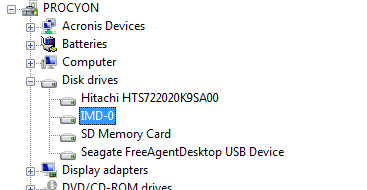
It's that thing called "IMD-0". I think I can just uninstall it.
Wish me luck.
UPDATE: I figured as much. When you uninstall it, it tells you to reboot. When you reboot it sees uninstalled hardware and installs drivers for it. Sheesh.
For most devices it's possible to "disable" it, using a button in another frame, but for this device that button is grayed out. Sheesh.
UPDATE:

Victory? No, I'm afraid not.
The new plan was to uninstall IMD-0, and before rebooting to enable ReadyBoost in the new card. Then reboot.
And during the reboot the system reinstalls drivers for IMD-0, and then ReadyBoost goes back into it, and when I look at the SDHC card it once again tells me I can't use it for ReadyBoost.
There has to be something, somewhere, that directly interfaces to and controls ReadyBoost. Seems like something that ought to be in the Control Panel, or in the Device Manager, or something. I think I'm going to have to do some googling.
UPDATE: New plan: go into the disk management section, and assign a drive letter to the NVCACHE. It now shows up in the Explorer as Z:, and now I can access its properties from there, including the ReadyBoost tab, and turn it off.
Having done that, I can then enable ReadyBoost in the SDHC card. And now to see if it stays that way when I reboot, or if this is something I'll have to do each time I boot up.
UPDATE: Success! It remained the same on a reboot. So here's the process:
In the control panel, open the Administrative Tools.
Select Computer Management
In the new window, select "Disk Management"
In the lower middle pane, find the NVCACHE device.
Right-click and select "Change Drive Letter"
In the resulting popup, give it a letter. I used "Z:"
Close everything.
Open the file explorer.
Right-click the new drive (Z:) and select "Properties"
Select the "ReadyBoost" tab.
Choose "Do not use this device". Then click "OK"
Now you can right-click on your SDHC card, select properties, select Readyboost, and enable it.
UPDATE: And then I found the control console. Oh, well. It is lost in the start menu, in a directory called "Intel Turbo Memory", and if you unclick anything it requires a reboot. Once it's complete, that IMD-0 device is gone outright. There's no longer a Z: device in the file explorer. Meanwhile, the SDHC still shows 4G being used for ReadyBoost.
Posted by: Steven Den Beste in Computers at
06:29 PM
| No Comments
| Add Comment
Post contains 494 words, total size 3 kb.
Enclose all spoilers in spoiler tags:
[spoiler]your spoiler here[/spoiler]
Spoilers which are not properly tagged will be ruthlessly deleted on sight.
Also, I hate unsolicited suggestions and advice. (Even when you think you're being funny.)
At Chizumatic, we take pride in being incomplete, incorrect, inconsistent, and unfair. We do all of them deliberately.
How to put links in your comment
Comments are disabled. Post is locked.18 queries taking 0.0106 seconds, 16 records returned.
Powered by Minx 1.1.6c-pink.